How to Automate Your Meeting Scheduling With AI
A practical guide to using AI scheduling assistants to cut down on back-and-forth emails, protect focus time, and stay in control of your calendar.
Tackling Calendar Overhead in Remote Work
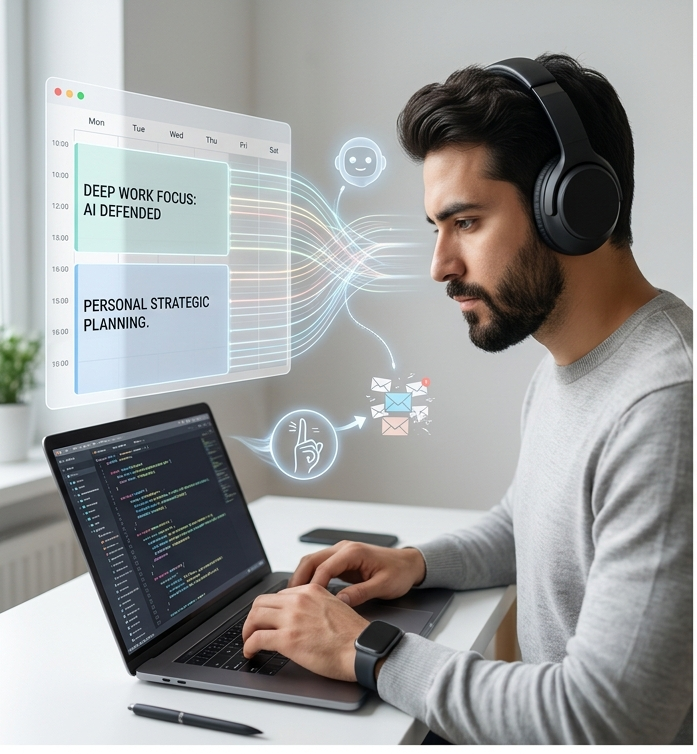
If you spend hours every week playing email tag just to pin down a mutually agreeable meeting time, you're certainly not alone. It's one of those tedious remote work headaches that actually has a practical solution today. AI scheduling assistants have advanced to the point where they can manage the bulk of that coordination on their own without taking away your control over your own schedule. This guide walks through how to set one up step by step: choosing the format that fits your workflow, configuring settings so your time stays protected, and knowing what to monitor during those initial weeks.
Step 1: Match the Assistant to Your Actual Bottleneck
Before comparing app features, take an honest look at where your administrative time gets lost. If client or prospect intake calls flood your schedule, a smart booking link directly resolves that friction. If back-to-back meetings constantly swallow up time you meant to spend working quietly, a calendar assistant that locks in focus blocks is the better fit. If you're negotiating times across long multi-recipient email threads, an inbox scheduler will deliver the biggest efficiency gain. You can always combine multiple tools down the road, but start by tackling your biggest scheduling friction point first rather than picking the app with the longest feature
Step 2: Lock Down Your Boundaries Before Connecting
Every scheduling assistant will prompt you to define working hours, buffer breaks between meetings, and maximum booking horizons. Make sure to complete this configuration before linking your live calendar. Most tools start suggesting open slots to other people the moment they are connected. Pro Tip on Buffer Gaps Set your meeting buffer time to at least 10 or 15 minutes right from day one. It's infinitely easier to tighten those gaps later than it is to recover from a week of back-to-back double bookings.
In addition, explicitly set your timezone, even if it appears correct by default. Timezone mismatches remain the single most frequent complaint with calendar automation, especially for remote workers who travel or coordinate across international regions.
Step 3: Supervise the AI Before Going on Autopilot
Most calendar managers offer a "suggest mode" designed for the initial onboarding period. Use it. Review what the AI proposes before those times lock onto your calendar, and fine-tune its rules whenever it misjudges something—such as treating a recurring strategic check-in as a low-priority item. Once you've corrected those initial missteps, you can comfortably switch to full automation for standard internal meetings while keeping manual approval required for external clients or high-stakes calls.
Summary
Focus on identifying your specific scheduling bottleneck rather than picking the flashiest app on the market. Opt for a booking link for external requests, a calendar assistant to guard your focus blocks, or an email scheduler if most coordination happens in long inbox threads. Establish working hours, buffers, and timezones before connecting anything, run the system in supervised mode for the first couple of weeks, and keep manual control over urgent or sensitive calls. Approached this way, AI scheduling won't just eliminate back-and-forth emails—it will actively safeguard the focus time you need to do your best work.
More in Artificial Intelligence
View allFrequently Asked Questions
Will an AI scheduling assistant book meetings without asking me first?
Most platforms give you granular control. You can require manual approval for every single meeting request, or let the tool book automatically as long as requests fall within the exact parameters you've specified (like strictly blocking out early mornings before 10 a.m.).
Is it safe to give an AI scheduler access to my calendar?
Yes, provided you choose a trustworthy app. Reputable services only look at event times and titles so they can spot open slots. You can also mark personal or sensitive entries as private so their specific details remain hidden even from the AI tool itself. Just make sure to review permissions before linking your primary work calendar.
Newsletter placeholder
Future weekly technology brief
This block reserves a clean, non-intrusive location for a future newsletter without changing article layouts later.
Comments placeholder
A future comments system can be added here without changing the article template.